Sync and Back Up OneDrive Files Across Your Devices
Synchronizing files to OneDrive is straightforward, but keeping sensitive synced folders secure from access by unauthorized users requires a deliberate workflow. Learn ways to set up syncing, resolve conflicts, and properly lock folders before they hit the cloud.

To sync OneDrive, use the native desktop app on Windows or Mac to create a two-way sync folder. That said, OneDrive does not let you password-protect standard folders. To secure sensitive data, you must either use OneDrive's limited Personal Vault or encrypt your folders with a external tool like Cloud Secure before syncing them.
OneDrive Folder & File Sync Explained
When you ask "how to sync onedrive folder to desktop," you are setting up a bridge between your local hard drive and Microsoft's cloud servers. Any change made on your computer is instantly mirrored in the cloud, and vice versa. This enables seamless remote work and device swapping.
But there is a significant catch: syncing is not the same as securing. While Microsoft uses encryption in transit and at rest on their servers, any folder synced to your desktop is generally accessible to anyone who opens your laptop, or anyone who gains access to your Microsoft account.
"The biggest mistake users make with cloud-based storage is confusing a synchronized folder with a secure vault. If a file is synced but unencrypted locally, it remains vulnerable at both endpoints."— Cloud Security Architecture Principle
What Cloud Providers Don't Tell You About OneDrive Sync
Understanding the difference between cloud sharing permissions and client-side encryption is crucial. Restricting cloud folder access via Microsoft's share controls only stops external links from working. It does nothing to prevent an insider threat, a compromised laptop, or a data breach at the provider level.
OneDrive Sync Configuration on Windows & Mac
Here is how to sync onedrive to computer using the native operating system tools. This is the foundation of cloud-based storage.

Ways to sync onedrive windows 11 & 10
- Click the Start menu and type OneDrive. Open the app.
- Sign in with your Microsoft account credentials.
- Follow the prompt to choose your sync folder location (usually
C:\Users\[YourName]\OneDrive). - Check the boxes for the selected folders you want to sync, or choose "Sync all files and folders."
- Use Files On-Demand in OneDrive controls to keep files in the cloud until you double-click them, saving hard drive space.
Ways to sync onedrive on Mac
- Download the OneDrive app from the Mac App Store.
- Launch OneDrive and sign in.
- Choose your folder location (usually in your Home folder).
- macOS integration will place a OneDrive icon in your menu bar and your Finder sidebar.
Security Note: These approaches will sync your files, but they do not secure them with a password locally. Anyone who opens your File Explorer or Finder can read the synced data.
Can I Password Protect a Folder in OneDrive?
This is one of the most frequent questions: "how to lock a folder in onedrive" or "can i password protect a onedrive folder?"
The plain answer is: No, standard OneDrive folders cannot be individually password-secured or locked. Microsoft does not provide a right-click "add password to onedrive folder" choice for standard directories.
To restrict cloud folder access and lock files, you have two primary choices:

Option A: OneDrive Personal Vault
Microsoft offers a function called Personal Vault. It requires two-factor authentication (SMS, app, or fingerprint) to open, and it automatically locks after inactivity.
- Pros: Built natively into OneDrive; secure 2FA requirement.
- Cons: The free tier is severely limited (only lets you store 0 files total). It also struggles with syncing large nested folders, and you cannot share files directly out of the vault.
Option B: Encrypt Before Cloud Upload
If you are handling confidential business files, HIPAA-compliant patient data, or simply want to lock a folder on onedrive without file limits, you must use client-side encryption. That means you use a external app to encrypt and password-safeguard your folder locally on your PC before OneDrive syncs it to the cloud.

Ways to Encrypt Files Before Uploading to Cloud Storage
since OneDrive lacks native folder passwords for unlimited files, you need a dedicated tool to secure cloud collaboration and protect files in the cloud. Of the tools we evaluated for zero-knowledge cloud encryption, here is what we recommend.
We Recommend:Cloud Secure
Developed by NewSoftwares.net, Cloud Secure is a specialized client-side encryption tool designed specifically to lock Google Drive, Dropbox, Box, and OneDrive folders.
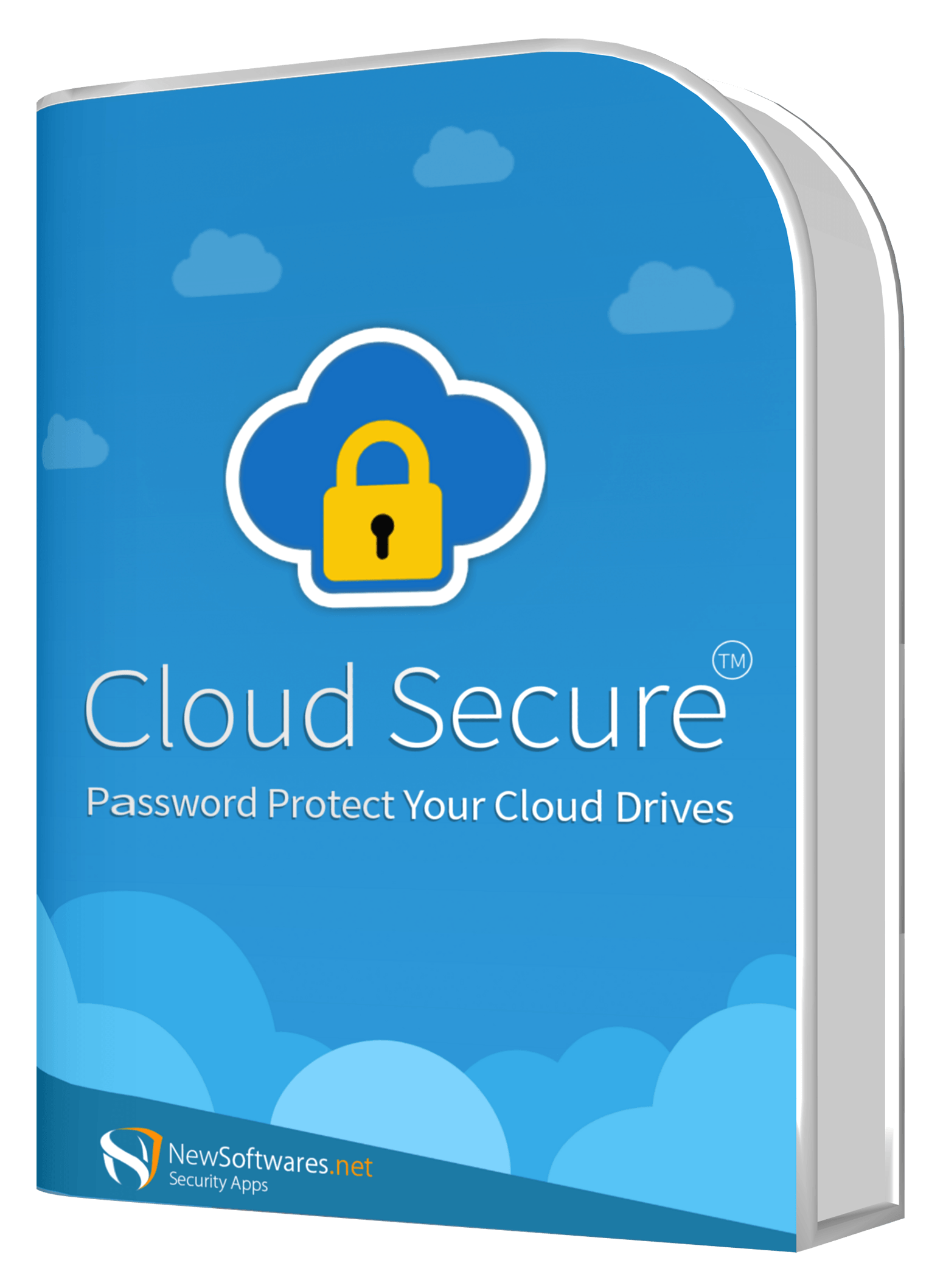


- Complete Local Lockdown: Secures the directory directly on your hard drive, preventing unauthorized viewing, accidental deletion, or unwanted modifications by anyone sharing your machine. The locked folder disappears from File Explorer entirely.
- Uninterrupted Background Syncing: Your files continue to update to Microsoft's servers silently in the background, even while the folder remains completely locked and hidden on your desktop.
- Unified Dashboard: Apply the same master credential to secure OneDrive, Google Drive, Dropbox, and Box simultaneously from a single interface. Access your files via the secure "View" button.
- Master Key Recovery: Should you ever forget your password, you can utilize the native Master Key recovery function using your original purchase serial number to regain access.
Ways to Password Protect a OneDrive Folder with Cloud Secure
Here is the exact workflow for client-side encryption before cloud upload:

Deploy the software on your desktop and establish a strong master password. Keep your purchase serial number safe, as it acts as your Master Key if you need to recover access.
Launch the dashboard. The system will automatically scan your machine and display your active OneDrive sync directories, alongside any Google Drive, Box, or Dropbox installations.
Select your OneDrive directory within the interface and click the Lock button. The folder will immediately vanish from its standard location in File Explorer, shielding it from local tampering or deletion.
Whenever you need to work on your files, simply authenticate into the app and click the dedicated "View" button. Meanwhile, the software ensures your documents continue syncing seamlessly to the cloud in the background, entirely uninterrupted by the local lock.
Problem Solving: When OneDrive Sync Fails
Syncing problems are frequent, especially when multiple users edit files or when dealing with hidden system files. Here are the most frequent longtail queries regarding sync errors.

OneDrive excel lock file .~lock / onedrive files have a lock on them
If you see a file starting with .~lock, this is a temporary hidden file created by Microsoft Office (Word, Excel) or LibreOffice. It prevents two people from overwriting each other's work.
- Problem: "onedrive file is locked for shared use" or "onedrive locked for shared use".
- Fix: Ensure all collaborators have closed the document. Wait 5 minutes for OneDrive to sync the closure. If the
.~lockfile persists, you can manually delete it from the OneDrive web interface or File Explorer to unlock the primary document.
OneDrive not syncing after password change
If you recently changed your Microsoft account password, the desktop sync client will pause. Click the OneDrive icon in your taskbar; it will prompt you to "Sign in" to refresh your credentials. Syncing will resume automatically.
OneDrive sync conflict
A sync conflict occurs when a file is edited offline on two various devices simultaneously. OneDrive will create a duplicate file appended with the computer name (e.g., Document-Laptop.docx). You must manually open both, merge your changes, and delete the duplicate.
Comparing Cloud Security Architecture
What is the most secure cloud-based storage service? Let's compare how the important providers handle encryption at rest, encryption in transit, and client-side folder locking.

| Cloud Provider | Encryption at Rest | Native Folder Passwords? | Zero-Knowledge choice? | Best Use Case |
|---|---|---|---|---|
| Mainstream Providers | ||||
| OneDrive | AES-256 (Server side) | No (Only Personal Vault) | No | Microsoft 365 users, general file sync |
| Google Drive | AES-256 (Server side) | No | No (Requires 3rd party tool) | Real-time document collaboration |
| Dropbox | AES-256 (Server side) | No | No | Fast block-level syncing |
| Enhanced Security Scenarios | ||||
| Any Cloud + Cloud Secure | AES-256 (Client side) | Yes (password-secured) | Yes | Confidential files, HIPAA compliance |
File Sharing Risk Calculator
Not sure if your current OneDrive setup is safe for confidential business files? Use this quick audit tool to check your risk exposure.
Assess Your Configuration
Common Questions and Answers

The difference between encryption in transit and encryption at rest? Explained
Encryption in transit protects data as it moves between your computer and Microsoft's servers (preventing interception on Wi-Fi). Encryption at rest protects files sitting on Microsoft's hard drives. That said, neither prevents someone sitting at your computer from reading the synced files. For that, you need client-side encryption.
Is OneDrive safe for confidential business files?
Out of the box, OneDrive is reasonably safe for general files but falls short for strict compliance (HIPAA, GDPR) if files are synced unencrypted to local endpoints. To make it truly safe for highly confidential data, you must add a client-side locking layer like Cloud Secure.
How do I share sensitive files via cloud without risk?
Never rely solely on link permissions. Encrypt the files in a ZIP archive or a secure vault before uploading. Share the encrypted file via OneDrive, and transmit the decryption password to the recipient via a completely separate channel (like a Signal message or secure phone call).
Can you lock a folder on onedrive?
Natively, no. You cannot right-click and lock a standard OneDrive folder with a password. You must either move the files into the OneDrive Personal Vault (which is limited to 3 files on the free plan) or use a external application to password-protect the folder before it syncs.
Zero-knowledge encryption in cloud storage? Explained
Zero-knowledge means the cloud provider (Microsoft) cannot read your files since they do not hold the encryption keys. Since OneDrive is not zero-knowledge by default, you achieve this by encrypting files locally on your PC before the OneDrive app syncs them up to the cloud.
Ways to revoke access to a shared cloud file?
Log into OneDrive on the web, right-click the shared file or folder, and select "Manage Access". From there, you can delete links you've created or remove selected individuals from the permissions list. The sync engine will propagate this change.
Can I protect my cloud files on a smartphone?
Yes. While desktop sync protection is the foundation of cloud security, dedicated mobile applications (available for iOS and Android) let you extend this security to your smartphone. These companion apps often include specialized vaults for sensitive photos, financial details, and private notes, ensuring your data remains shielded even if your physical device is compromised.
Secure Your OneDrive Sync Today
Syncing files is essential for modern workflows, but leaving synced folders unencrypted on your hard drive is a massive vulnerability. While native OS approaches handle the sync perfectly, they fail at local endpoint protection. We highly recommend pairing your OneDrive setup with a dedicated client-side locking tool.